Most document scanner apps quietly do the same thing. You point your camera at a page, and the image is uploaded to a server you have never seen so that somebody else's software can read the text on it. Tax returns, medical letters, rental contracts, passport copies: all of it ends up in storage you do not control. An offline document scanner flips that around. The scanning, the text recognition and the search all happen on the phone in your hand, and nothing ever leaves it.
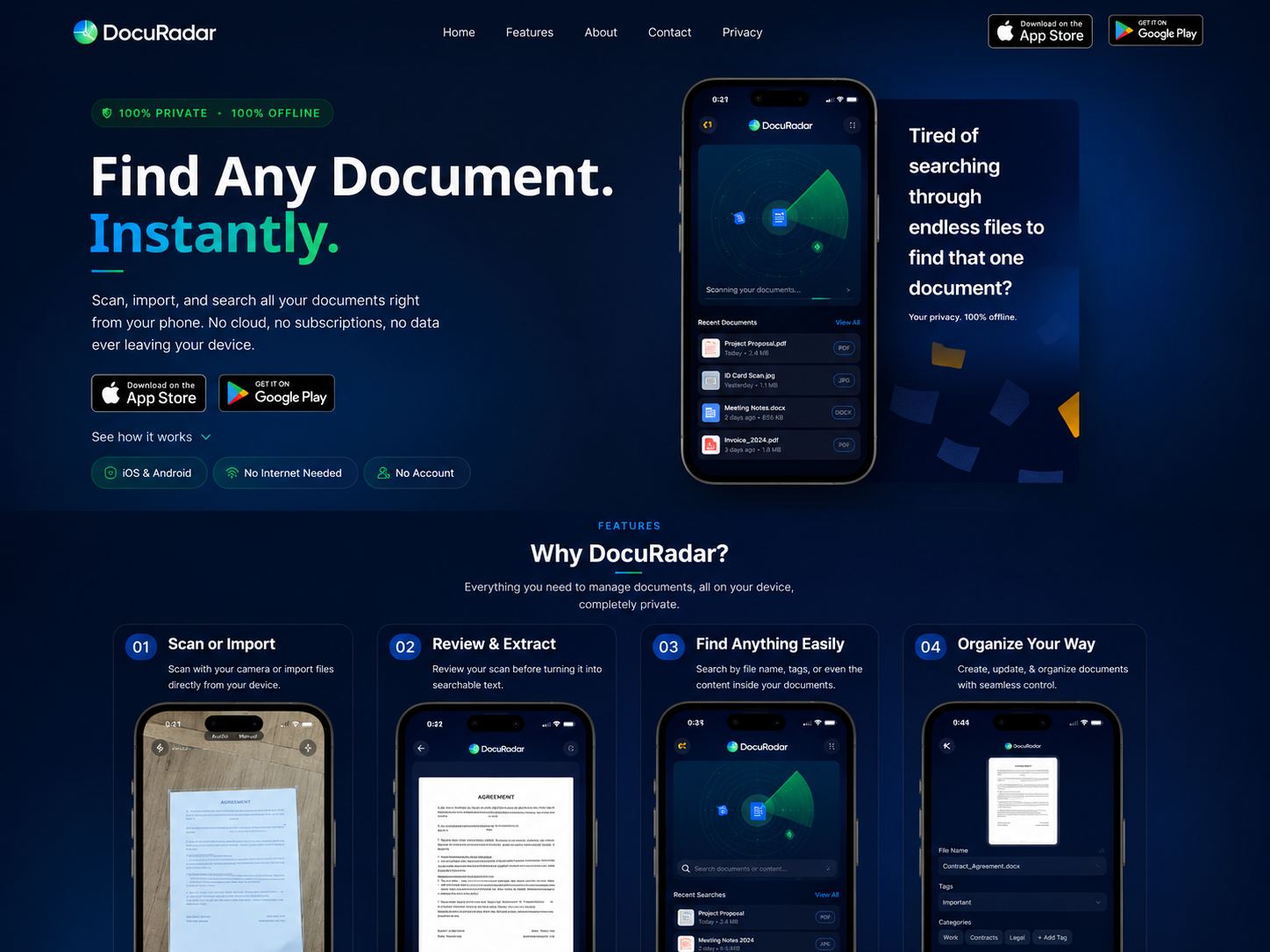
An offline document scanner captures, reads and indexes your documents entirely on your device. There is no upload, no account and no cloud sync, and full-text search still works because the OCR runs locally. DocuRadar is built exactly this way: 100% offline, on both iOS and Android.
What is an offline document scanner?
An offline document scanner is a scanning app that never needs a network connection to do its job. It turns a photo of a page into a clean, cropped document, extracts the text with on-device OCR, and stores the result in local storage so you can find it again later. The difference is not cosmetic. In a cloud scanner, the useful work happens on a remote server and your document is the payload. In an offline scanner, the useful work happens on your processor and the document never becomes anyone else's problem.
For an app to genuinely count as offline, all four of these have to be true:
Pages are captured and stored on the device, not in a remote bucket.
OCR runs locally, so text extraction does not require an upload.
Search queries are answered from a local index, not an API call.
The whole thing still works in airplane mode.
Plenty of apps advertise "offline access" while only meaning that previously synced files are cached for reading. That is not the same promise. Cached access still means your originals were uploaded at some point.
Why cloud document scanners are a privacy problem
The privacy cost of cloud scanning is easy to underestimate, because nothing visibly bad happens on the day you scan a document. The risk accumulates quietly instead.
Your documents live on someone else's server
Once a scan is uploaded, its safety depends on a company's infrastructure, its staff, its retention policy and its next security incident. You are trusting all of that with the exact category of paperwork that is most useful to an attacker: identity documents, financial records and medical history, already conveniently converted to searchable text.
Accounts and subscriptions you did not need
Cloud processing requires an identity to bill and a plan to enforce, so the app asks you to create an account before it will scan anything. That account ties every document you process to an email address, a device and a payment method. It also creates lock-in: your archive lives in a service you have to keep paying to reach.
You cannot audit what you cannot see
When processing happens on a server, you have no practical way to verify what is retained, for how long, or which third parties are involved. A privacy policy is a promise, not a mechanism. On-device processing is a mechanism, because a document that is never transmitted cannot be retained by anyone else.
Cloud scanners upload the documents you would least want leaked.
An account and a subscription are usually a consequence of server-side processing, not a feature you asked for.
Modern phones are fast enough to run OCR locally, which removes the reason to upload at all.
Offline scanning is verifiable: with no network permission in use, there is nothing to leak.
How on-device OCR actually works
OCR, or optical character recognition, is the step that turns a picture of a page into text a computer can search. It used to be genuinely heavy work, which is why early scanner apps shipped it off to a server. That constraint is gone. Today's phones have dedicated hardware for exactly this class of task, and both iOS and Android expose mature on-device text recognition to apps that want to use it.
In practice the pipeline runs in a fraction of a second per page. The app detects the page edges, corrects the perspective so the document is flat and rectangular, cleans up the contrast, then reads the characters and records where each one sits on the page. The extracted text is written to a local index alongside the image. From then on, searching a thousand scanned pages is a local lookup rather than a request to an API. Scan quality still matters more than anything else here: even lighting and a steady, in-focus shot do more for accuracy than any amount of server hardware.
Offline vs cloud: what actually changes
Where files live: on your device, versus on a provider's servers.
Where OCR runs: on your processor, versus on rented hardware you cannot inspect.
Account required: none, versus sign-up before first use.
Works with no signal: always, versus partially or not at all.
What a breach exposes: nothing of yours, versus your entire uploaded archive.
Ongoing cost: no server bill to pass on, versus a subscription that funds the storage.
How to switch to offline scanning today
Moving to an offline workflow takes about ten minutes, and the habits are the same ones you already have.
Scan or import. Capture paper with the camera, or import PDFs and images that are already on your device. Start with the pile that bothers you most, usually receipts, bills or anything with a deadline attached.
Review and extract. Check the crop, then let on-device OCR turn the page into searchable text. This is the step that makes the archive useful later, and it is also the step a cloud app would have used as its excuse to upload.
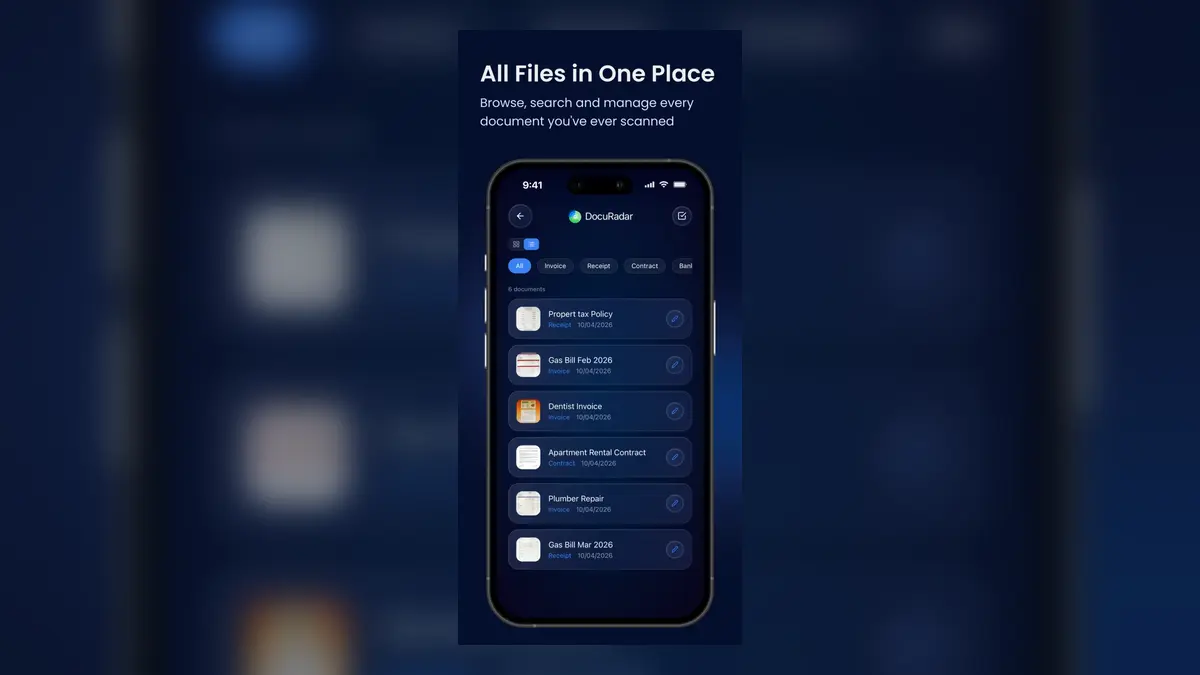
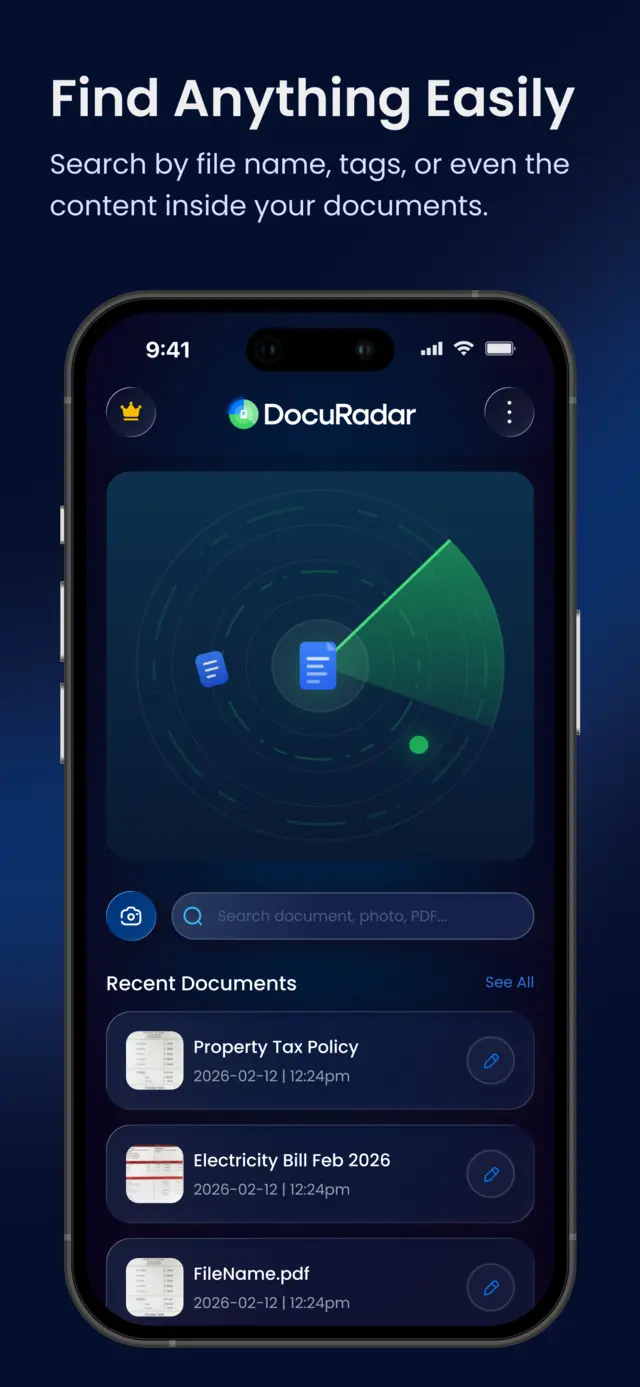
Find instantly. Stop filing things into deep folder trees. Tag broadly, then search by filename, tag, or any word printed inside the document itself.
The last habit is the one worth breaking deliberately. Careful folder structures exist because search used to be unreliable. Once the text inside every page is indexed, a two-word query beats a filing system you have to remember.


Frequently asked questions
Yes. Capture, OCR and search all run on the device, so a genuinely offline scanner keeps working in airplane mode, on a plane, or anywhere with no signal. DocuRadar requires no internet connection at any point.
On your device, in the app's own storage. Nothing is synced to a server, so your documents are covered by your phone's own security and your own backups.
No. There is no sign-up, no login and no user profile. You open the app and start scanning, because there is no server-side processing that would need an identity behind it.
Yes. On-device OCR extracts the text from every page you scan, so you can search by filename, by the tags you assign, or by any word printed inside the document itself.
No. DocuRadar does not collect, store or transmit personal data, and it does not include analytics SDKs, ad networks or third-party trackers. Everything stored in the app belongs to you.
Scanning a document should not mean handing it over. The hardware to keep it private has been in your pocket for years, and an offline document scanner is simply the app that finally uses it.